
Getting Started: Catalog Your First Folder
A step-by-step guide to cataloging your first folder with AI Video Cataloger.
By AI Video Cataloger
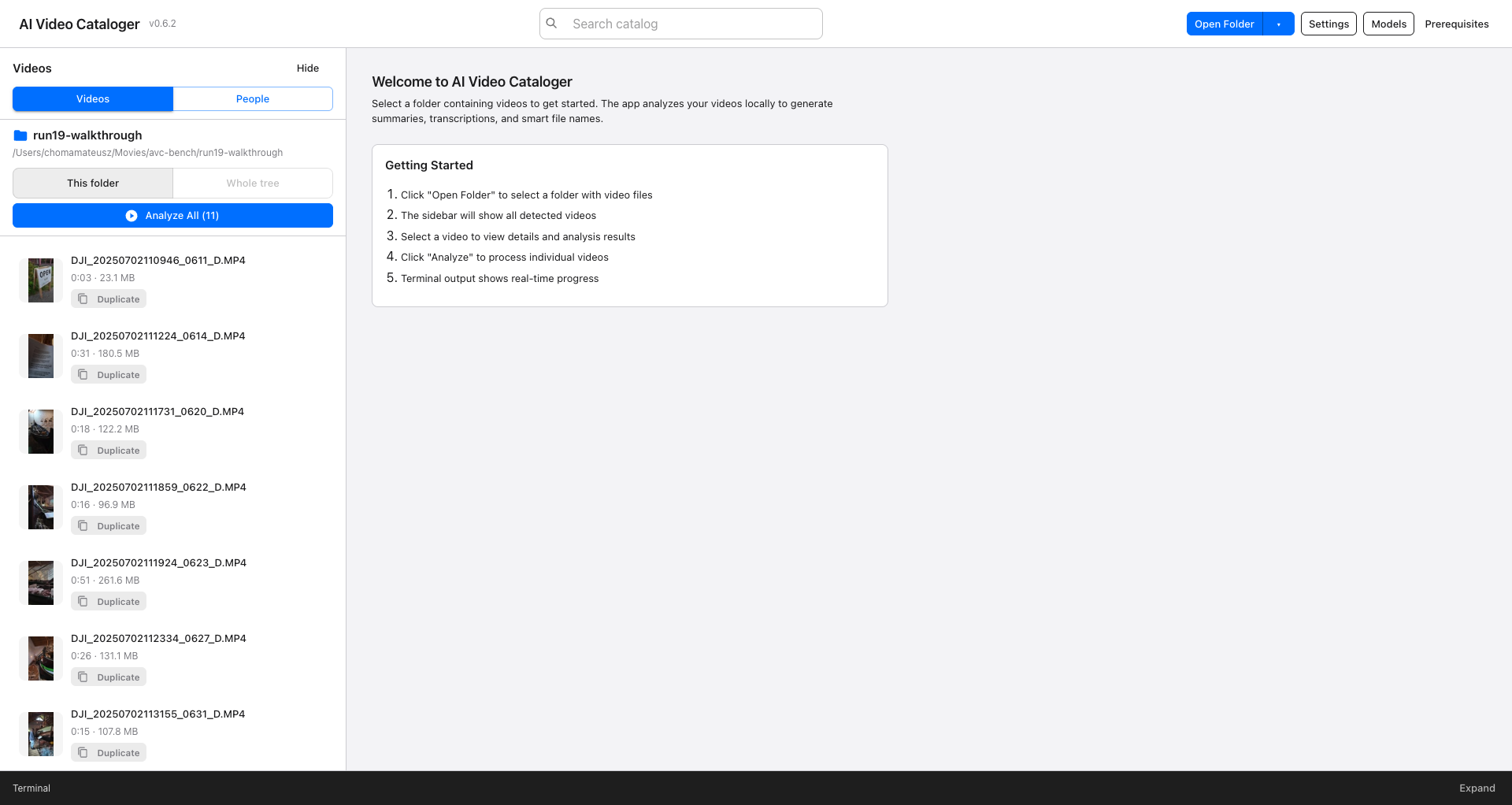
AI Video Cataloger turns a folder of camera-dump filenames into a folder you can search. It extracts a few frames from each clip, transcribes the audio, describes what is in the video, proposes a descriptive filename, and writes the whole thing into a local catalog you can query by typing a word you remember.
This walkthrough goes from a fresh download to a searchable folder, and is honest about the trade-offs at each choice — particularly the analyzer choice, which is the one decision that meaningfully changes your results.
Install
The macOS build is not signed or notarized. Gatekeeper will refuse it on a double-click, and that is expected rather than a sign of a broken download.
- Open the DMG and drag AI Video Cataloger to Applications.
- In Applications, right-click the app and choose Open, then confirm Open in the dialog. Right-click-Open is what registers your consent; double-click does not.
- If macOS still blocks it, open System Settings → Privacy & Security, scroll to the message naming AI Video Cataloger, and choose Open Anyway.
You only do this once. Afterwards the app opens normally.
The app needs Apple Silicon for the fully local analyzer option. Every other option — API, agent harness, Gemini — runs the model off-device and works on any supported Mac.
First run: the setup wizard
On first launch you get a welcome panel with the short version of the workflow: open a folder, pick a video, analyze, watch the terminal drawer at the bottom for progress.
The real setup lives in the Setup Wizard, reachable from Settings → Run
Setup Wizard, or from the CLI with ai-video-cataloger setup. It has seven
steps: Welcome, Language, Analyzer, Transcription, Downloads, Readiness, Done.
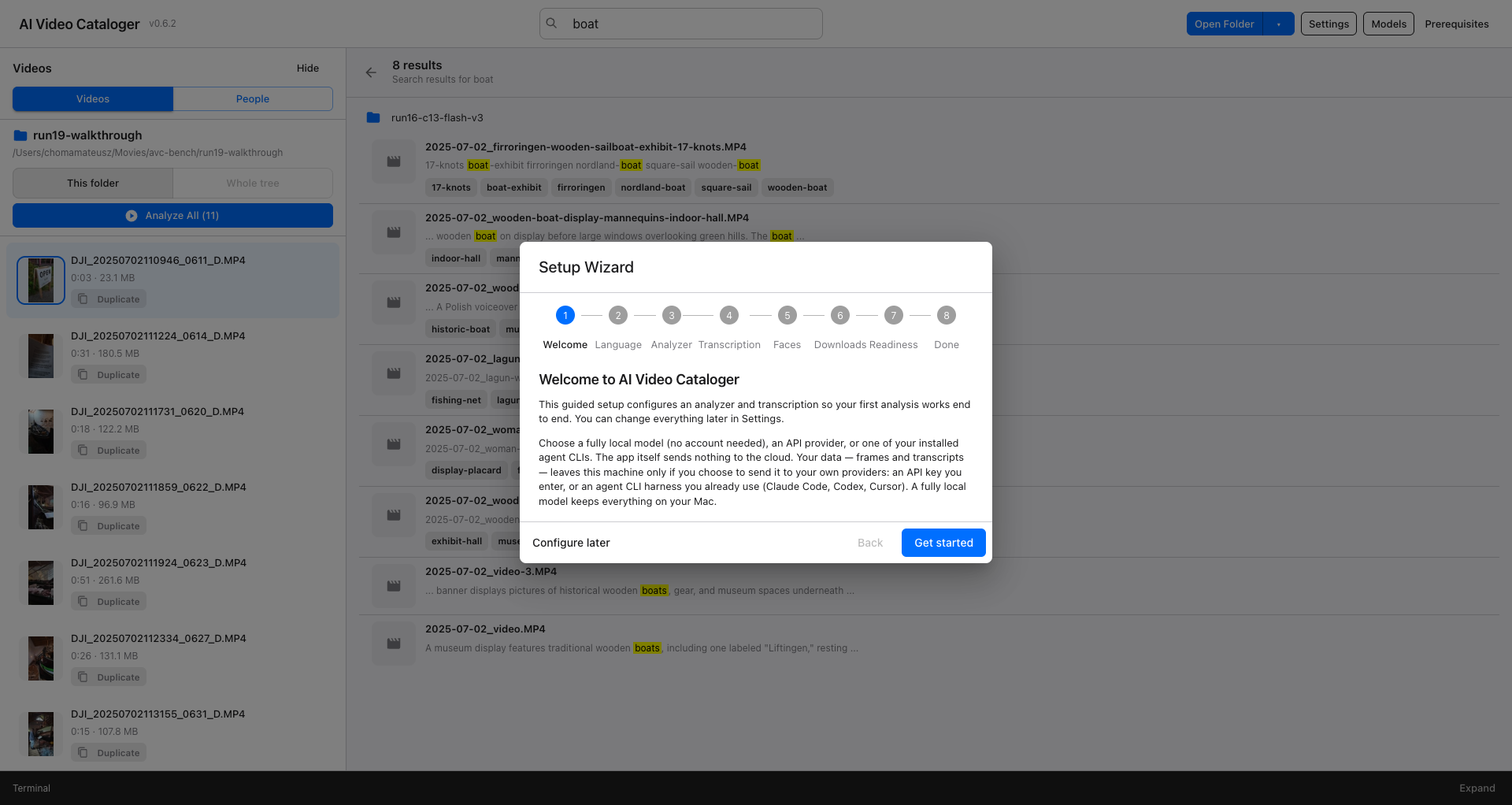
Everything the wizard configures can be changed later in Settings, so there is no wrong answer you get stuck with. Only one step is worth thinking about.
The analyzer choice, honestly
Four families, four different bargains:
| Family | What leaves your Mac | Cost | Best for |
|---|---|---|---|
| Local (Ollama, Gemma 3) | nothing | $0 | privacy-critical footage; Apple Silicon required |
| API (OpenAI-compatible) | frames and transcript text | per-token, your key | a provider you already pay for |
| Agent harness (Claude Code, Codex, Cursor) | frames and transcript text | covered by your existing CLI subscription | best quality-per-dollar if you already have one of these installed |
| Gemini (native video) | the entire video file, including audio | roughly a few cents per minute of footage | clips where the picture, not the narration, carries the information |
Three things the option list will not tell you unless you read the fine print:
The app itself sends nothing anywhere. There is no telemetry, no account, no backend of ours. Data leaves your machine only through a provider you configure with your credentials.
Gemini native is the exception to local-first, and it is a big one. It does not upload frames — it uploads the whole file, audio included. Files under about 20 MB go inline with the request; larger ones go through Google's Files API and are retained on Google's side for about 48 hours. The model produces the transcript itself, so no Whisper download is needed. Cost scales with duration, not resolution, because video is billed in tokens per second. The wizard states all of this before you can select it. Do not point it at private or confidential footage.
Local models are genuinely weaker on hard material. In our own blind benchmark, local Gemma legs scored 3.7–4.4 out of 10 against 7–8.8 for hosted and harness models on museum footage full of small foreign-language signage. Local is the right answer when privacy is non-negotiable; it is not the right answer when you want the best catalog.
Transcription
The Transcription step offers a managed whisper.cpp runtime the app downloads
and builds for you, your own existing whisper binary (useful if you have a
GPU-optimized build), the OpenAI Whisper API, or skipping audio entirely. If you
picked Gemini native, transcription stays skipped — the model reads the audio
itself.
One setting here is worth more than it looks: transcription language. It
defaults to auto. If your videos have non-English narration, leave it on
auto or pin it explicitly. A language-mismatched whisper run does not fail
loudly, it quietly translates — and everything downstream then treats the
mistranslation as fact.
Open a folder and analyze
Click Open Folder and pick a directory of videos. The sidebar fills with every clip it found, with duration, size, thumbnails, and a duplicate marker for files whose content it has seen before.
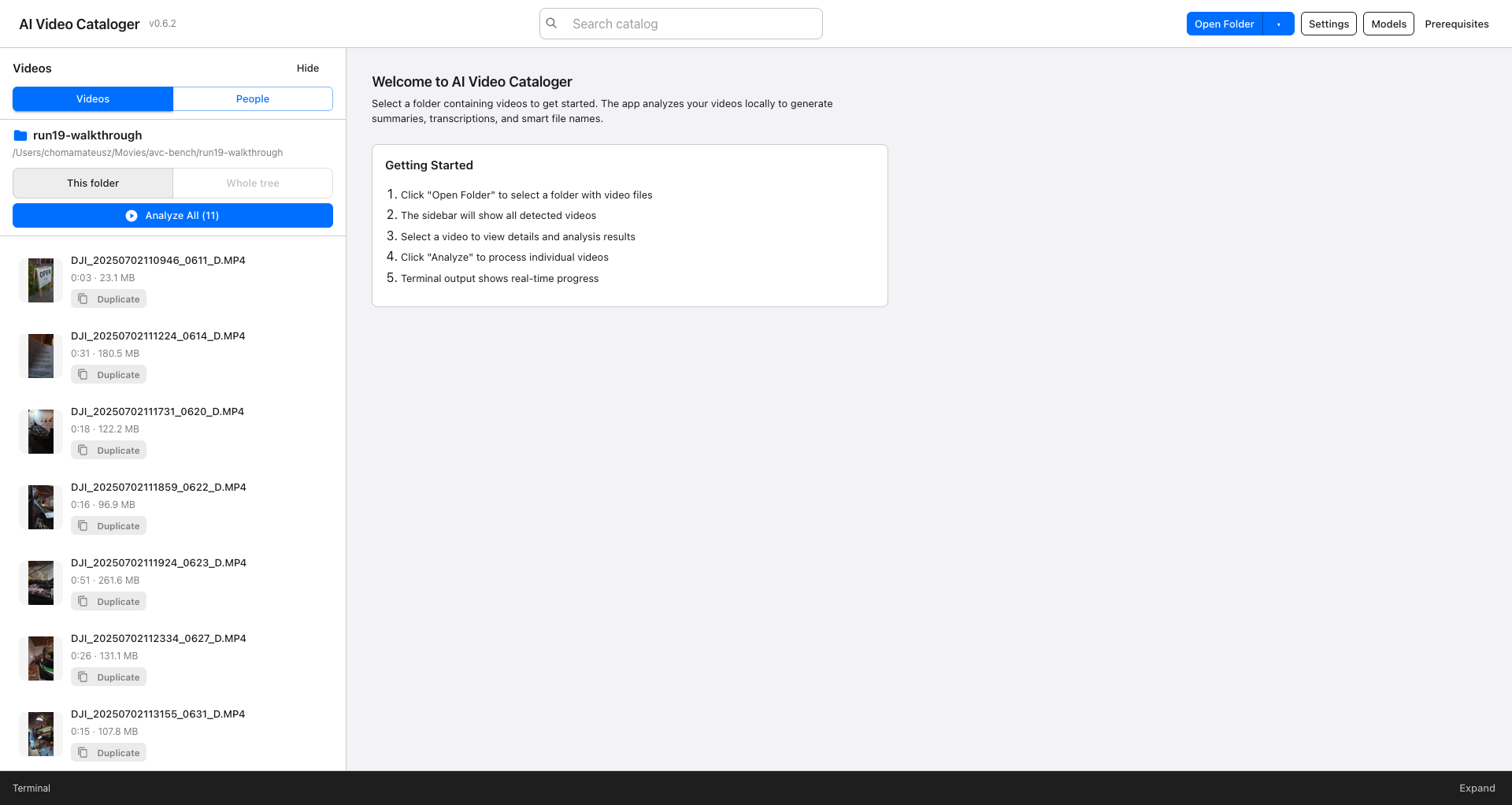
Two controls above the list decide the scope of everything below:
- This folder / Whole tree — whether the list, the Analyze All count, and search cover just this directory or every subdirectory under it.
- Analyze All (n) — queue every unanalyzed clip in scope.
Start with a small folder. Ten to twenty clips is enough to see whether the analyzer you chose suits your material, and it takes minutes rather than a night. Analysis is resumable and content-addressed: re-running the same folder with the same configuration skips work that is already done, so nothing is wasted if you interrupt it.
The terminal drawer at the bottom of the window ("Expand") streams progress per file — frame extraction, transcription, analysis, rename — which is also where a stalled provider or a missing credential shows up first.
Reading the results
Select a clip and the detail pane shows what the run produced.
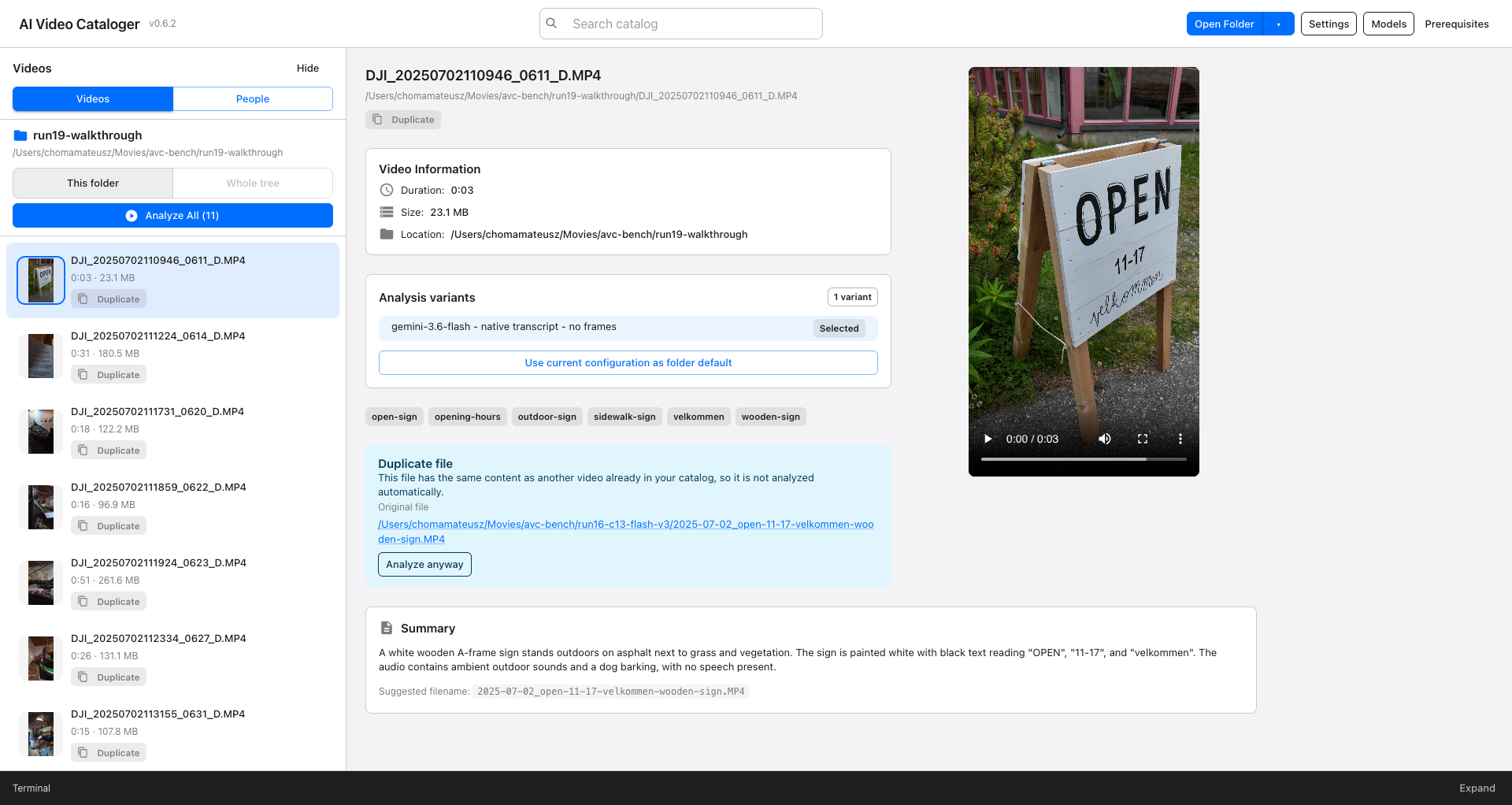
Four outputs, in decreasing order of how much you should trust them:
- Description — a paragraph of what is on screen and what was said. This is the richest field and the one search matches against most often.
- Tags — short kebab-case keywords (
open-sign,opening-hours,outdoor-sign). They are the fastest way to browse a folder by subject. - Transcript — the spoken audio. Treat near-silent clips with suspicion: whisper hallucinates confidently on silence, so a three-second clip of a sign can come back with an invented sentence.
- Filename — the proposed descriptive name, date-prefixed. Renaming is optional; you can keep the catalog and leave the files untouched.
The one failure mode to watch for is a filename or tag built on a proper noun the model could not actually read. If a name looks oddly specific for footage you remember as ambiguous, check the description before you trust it.
Analysis variants: run more than one configuration
This is the feature that makes the analyzer choice reversible. Every analysis is stored as a variant, keyed by its full configuration — analyzer, model, transcription source, frame count, output language, prompt version. Run the same folder with a different analyzer and you do not overwrite anything; you add a second variant beside the first.
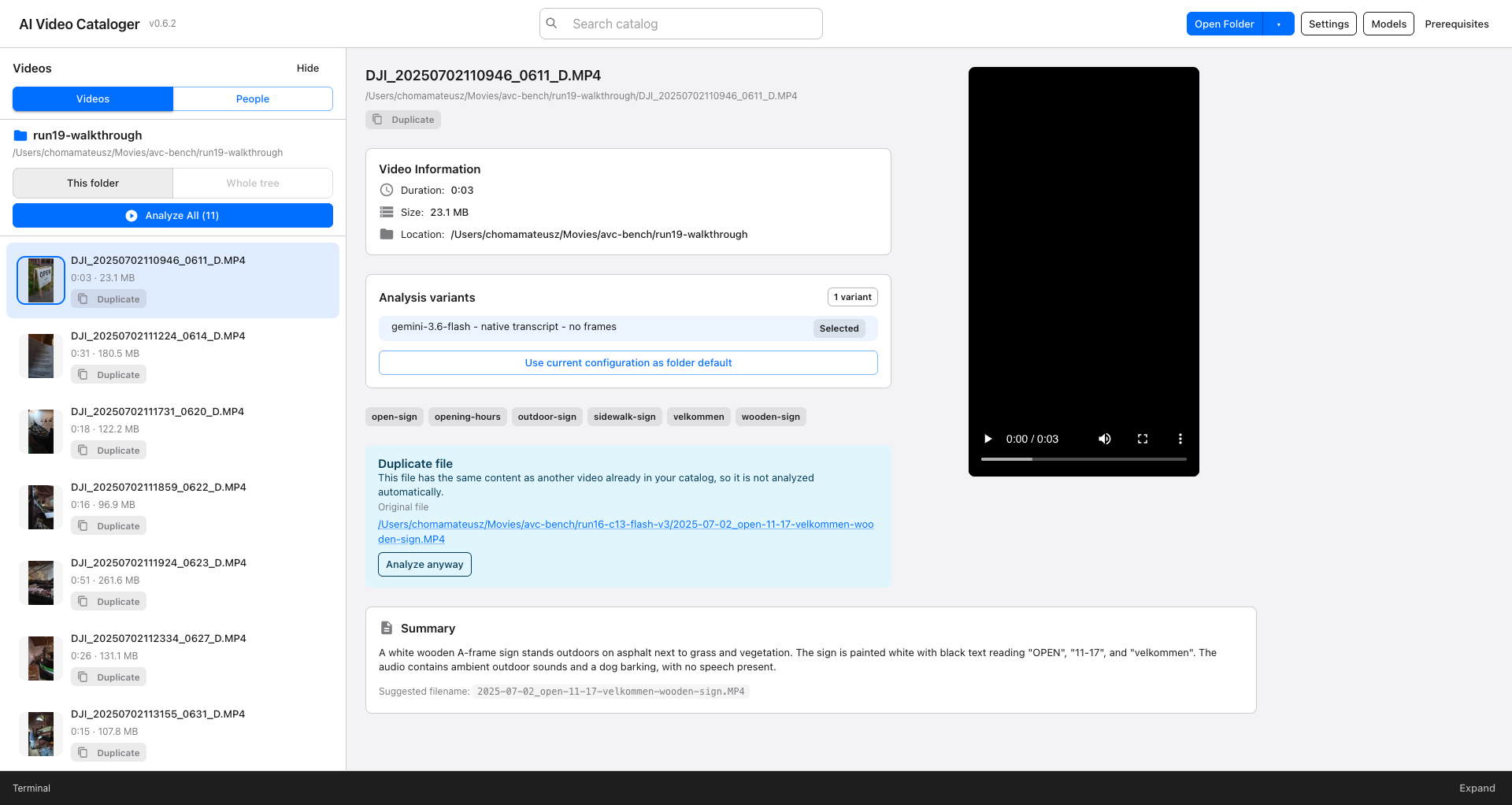
In the variants panel you can:
- see every stored configuration for that clip, with the selected one marked;
- compare variants side by side — configuration, frames, transcript, summary, tags, duration and recorded cost in parallel columns — and select a winner from its column;
- set the current configuration as the folder default, so later runs in that folder inherit it;
- see, before you press Analyze, whether it will create a new variant or replace an existing one.
Search results carry a badge when a clip has more than one variant, so you can tell whether you are looking at a single opinion or the selected one out of several. Selecting a variant also refreshes the name-based artifacts and the search document together, so the catalog never drifts from what is displayed.
The practical recipe: analyze a small folder twice, once with a fully local model and once with a harness or Gemini, then compare on your own footage. That is exactly how we ran our benchmark, and it takes about ten minutes on twenty clips.
Search
The search box at the top queries the catalog, not filenames: descriptions,
tags, and transcripts across everything indexed. Type boat, or a phrase from
narration you remember, or a word you saw on a sign.
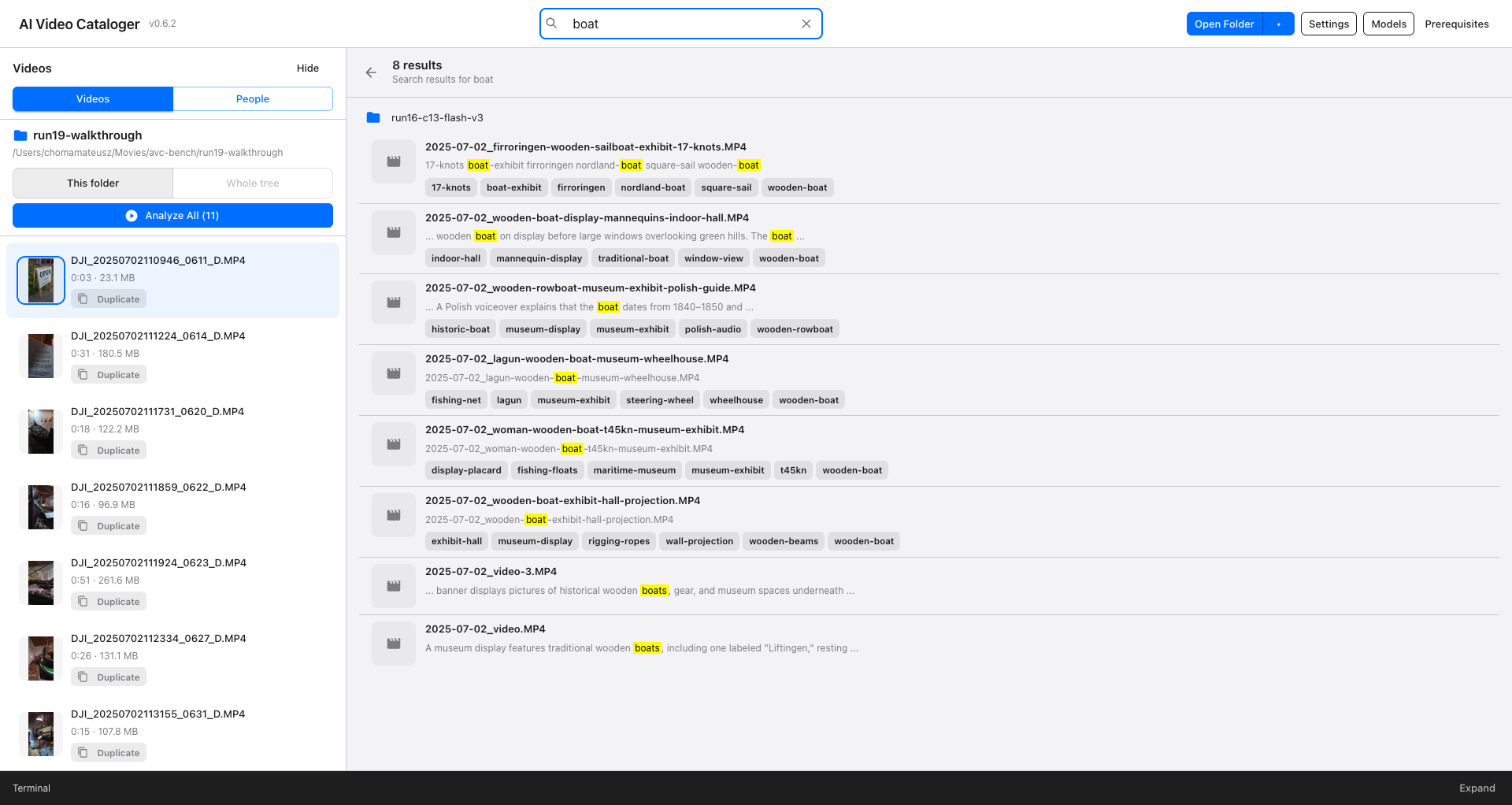
Search honors the folder-scope toggle, so Whole tree is what you want when you are looking for a clip and do not remember which subfolder it landed in.
Settings worth knowing
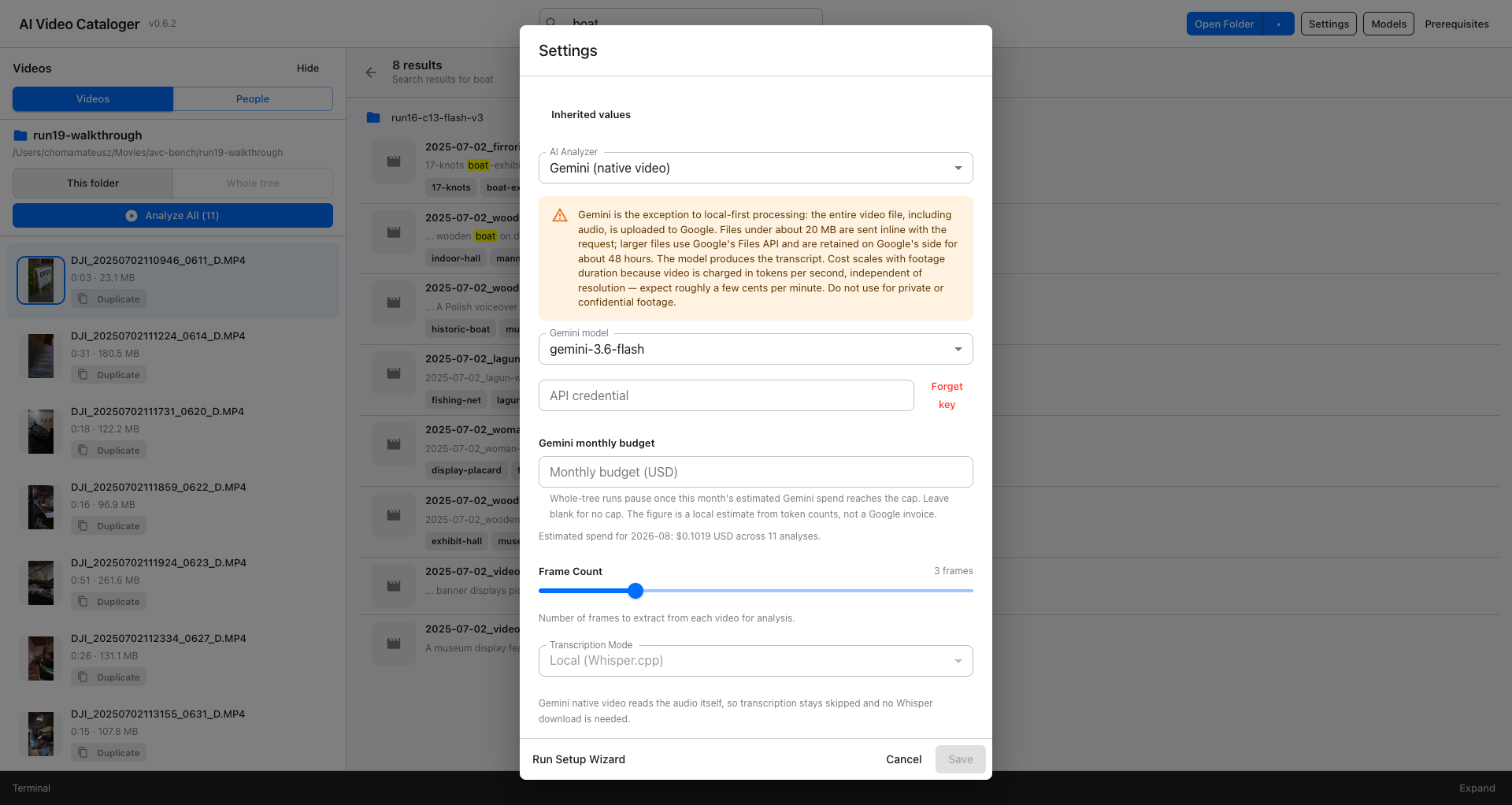
Settings opens with a plain-text summary of every inherited value and where it came from — home config or folder override — which saves a lot of confusion later, because a folder override silently beats your home configuration. If a folder is analyzing with a provider you did not choose, that summary is where you find out why.
The controls you will actually touch:
- Frame count (default 3). More frames catch more on-screen text on long pans, at proportionally more cost and time.
- Transcription mode and Whisper model — local, your own binary, API, or skip.
- Gemini monthly budget cap plus a read-only readout of this month's estimated Gemini spend and how many analyses are behind it. Drive runs pause when the cap is reached and stay resumable, so a runaway batch cannot quietly spend your month.
The CLI
Everything in the GUI is available headless. The packaged app stages a CLI at
resources/cli; from a source checkout use pnpm run cli.
Analyze one clip with explicit choices:
ai-video-cataloger process ./clip.mp4 \
  --frames 3 --whisper local --whisper-language pl --provider codex
Walk a whole drive, keeping the Mac awake, emitting machine-readable events:
ai-video-cataloger process-drive /Volumes/video_lib \
  --whisper-language auto --keep-awake --json
Send a drive run through the Gemini Batch API instead — half price, results usually in minutes but allowed up to 24 hours:
ai-video-cataloger process-drive /Volumes/video_lib --gemini-batch --jsonInspect and manage variants without opening the app:
ai-video-cataloger variants list ./clip.mp4 --json
ai-video-cataloger variants select ./clip.mp4 --config cfg_0ba022ac2b7b
ai-video-cataloger variants default ./folder --config cfg_0ba022ac2b7b
With --json every command emits NDJSON events and exits with a documented
taxonomy code, which is what makes long unattended runs scriptable: a drive run
with per-file failures still exits 0, and the summary event carries the failure
count.
Before you point it at everything
- Analyze a small folder first, compare two variants, and only then commit a library.
- Check the transcription language if your narration is not English. It is the single setting most likely to quietly degrade every description you generate.
- Set the budget cap before the first Gemini drive run, not after.
- Read one description against its clip before trusting a rename. Descriptive filenames are useful precisely because they are specific, and specific is also how a wrong name hides.